
Step 3: Configuring the Widget
After entering your Company ID, you can configure the widget’s display settings:
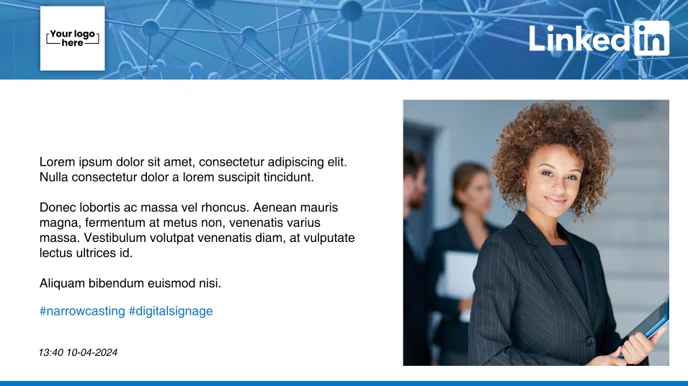
- Hashtags: The widget will automatically display the first four hashtags associated with your company profile. These are typically the hashtags most relevant to your company’s content.
- Logo:
- Using LinkedIn Logo: By default, the widget will display the logo from your LinkedIn profile. Note that LinkedIn places a white background behind the logo.
- Custom Logo: If you prefer to display your logo without the white background, you can upload a custom logo directly in the widget settings.
- Reposts: If you repost content on LinkedIn, only your custom message will be displayed in the widget, not the original reposted content.
Conclusion
By following these steps, you can successfully set up and customize the LinkedIn widget to enhance your platform with your company’s LinkedIn content. This integration allows you to showcase your brand and engage with your audience directly through your LinkedIn profile.