Change Media Player Settings

Learn how to change the settings of a media player, including screen orientation and playback times, to perfectly align your content with your needs.

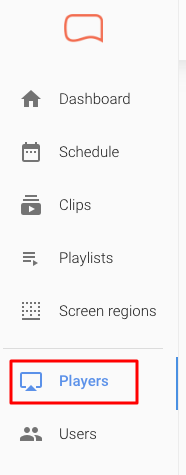
From your Dashboard, go to Players in the left-hand menu.

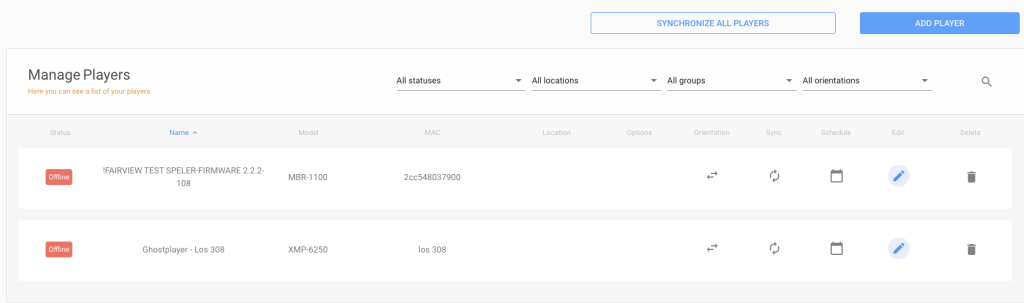
You will now see an overview of your media players:

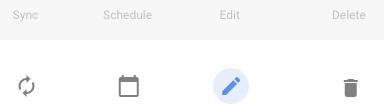
To the right of each media player, you will find several options. The first icon allows you to synchronise the media player, which retrieves the latest programming. By clicking the second icon, you can go directly to the media player’s programming. The third icon allows you to change the media player’s settings, and the last icon allows you to remove a media player from your account.

Click the pencil icon to access the media player settings.

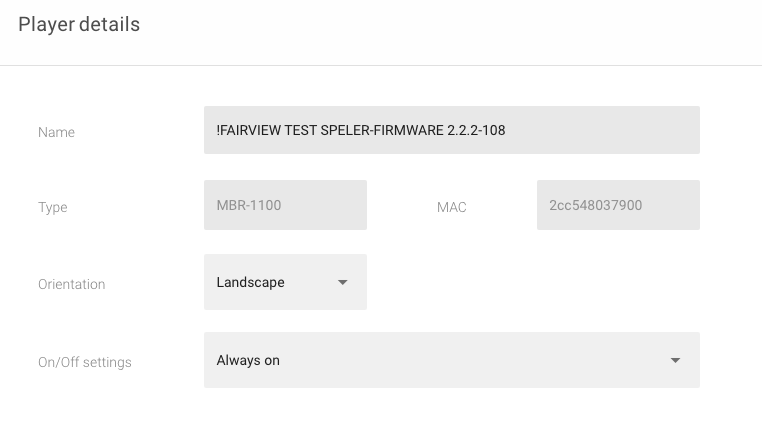
  • In the first field, you can change the name of the media player.
  • In the Type field, you can see which media player model you have, and the MAC field shows the MAC ID of your media player. These two fields are fixed and cannot be changed.
  • The Orientation field determines how the content is displayed on the screen. A screen positioned horizontally with the longer side horizontal is landscape, while a screen positioned vertically with the longer side vertical is portrait. You can change the orientation of the player, but doing so will disconnect the programming currently assigned to the media player. Fragments for landscape and portrait orientation are different and cannot be played in the other orientation.
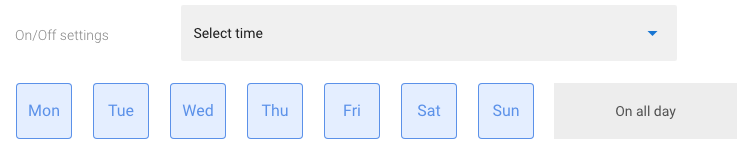
  • The On/Off times field allows you to set the times at which your screen should turn on and off each day. If you want to enter these settings, select Select Time.

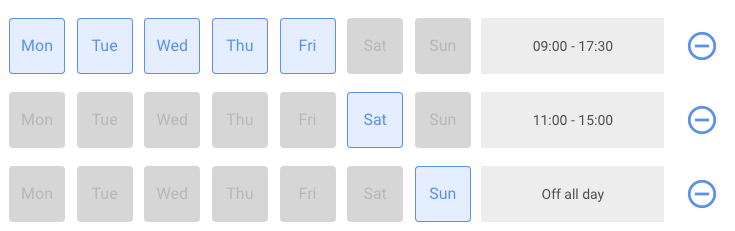
The days to which the settings apply are highlighted in blue. On the right, you can then select whether the player should be on all day, off all day, or on and off at specific times on those days.

With Select Time, you can enter the time at which the screen should turn on (start time) and the time at which it should turn off (end time).

If you have not selected all days, you can click the plus icon to add a new row and specify the settings for the remaining days.

Example

Suppose you want the same times from Monday to Friday, but different times on Saturday and Sunday.

First, deselect Saturday and Sunday in the first row. Set the start and end times for Monday to Friday. Then click the plus icon and select Sunday to exclude it from the second row. Set the start and end times for Saturday.

Click the plus icon again and repeat the steps for Sunday.

Once you have finished making changes to the player settings, click Save at the top of the page.

Don’t forget to save your changes, otherwise they will not be applied.

Scroll to Top