
When you are logged into the widget with Facebook, it is important that you select the correct business pages. This is necessary so that we can retrieve the corresponding information.
Click on the Facebook widget you want to configure.
Click on “Connect with Facebook” and log into your account.
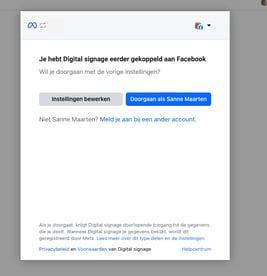
Click on “Edit Settings” and select the business page you want to display on the screen.
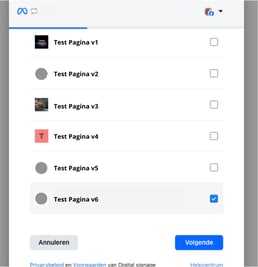
Click on “Next” make sure all options are enabled, and click “Done.”
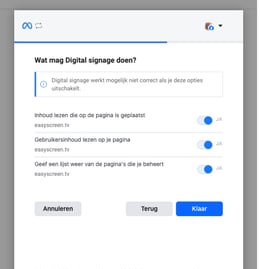
Note: only the pages you have selected are available in the dropdown.
Pages selected but not visible in the dropdown?
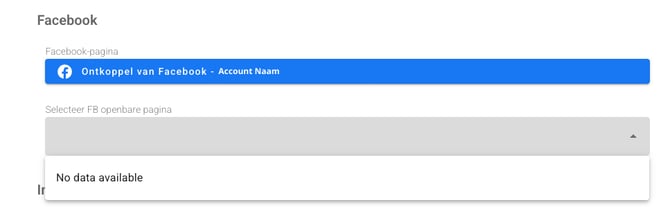
When the selected pages do not appear in the dropdown, follow these steps:
Steps to check and configure access:
-
- 1. Log in to Facebook and click on your profile picture in the top right (next to the notifications icon).
- Click on the business page you want to connect.
- Click your account again in the top right (you are now in the business page environment).
- Go to Settings and privacy → Settings.
- Use the search bar in the middle of the page (“Search settings”) and search for Page Access.
- People with Facebook access, or
People with task access. -
For people with task access, at least Content access must be assigned.
-
If this is not configured correctly, the Facebook connection will not work and your account will not appear when selecting a Facebook account within Easyscreen.