Manage Bundles (Main User)

As a main user, you have full control over bundles. You manage their content and order, decide when fragments are visible, and ensure variety and structure in the playlist. Bundles allow you to manage content efficiently and flexibly, without having to adjust the entire programming each time.

What is a bundle?

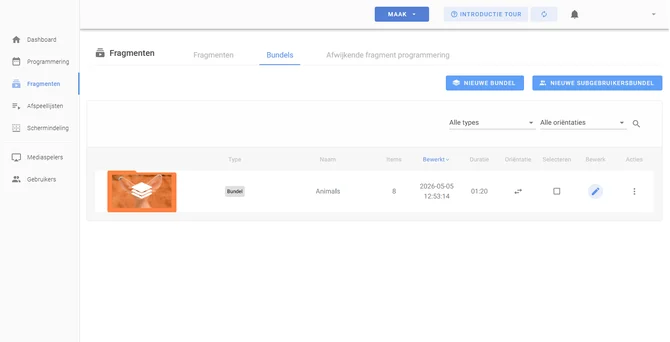
A bundle is a collection of fragments that you use to group and manage content. As a main user, you have full control over bundles: you decide which fragments they contain, the order in which they are played, and when they are visible.

Bundles help you keep content organised and ensure that fragments are automatically distributed across multiple loops in the playlist.

Why use bundles?

You can use bundles to:

  • Group content logically, for example by campaign or department
  • Maintain control over what is being played
  • Create variety in the screen display
  • Quickly respond to promotions or changes

Step 1: Go to Bundles

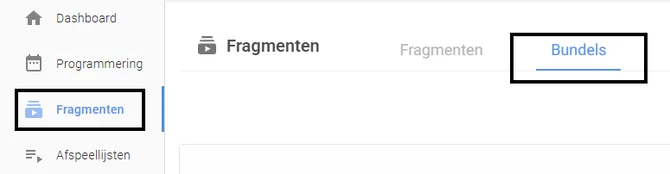
  1. In the left-hand menu, go to Fragments
  2. Click the Bundles tab

Step 2: Open a bundle

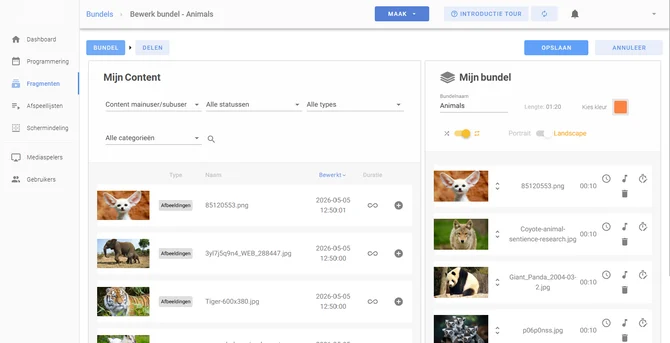
  1. Create a new bundle or select the bundle you want to manage
  2. Click Edit

Step 3: Add or remove fragments

  • Add fragments from your library
  • Remove fragments that are no longer needed

Step 4: Set the order of fragments

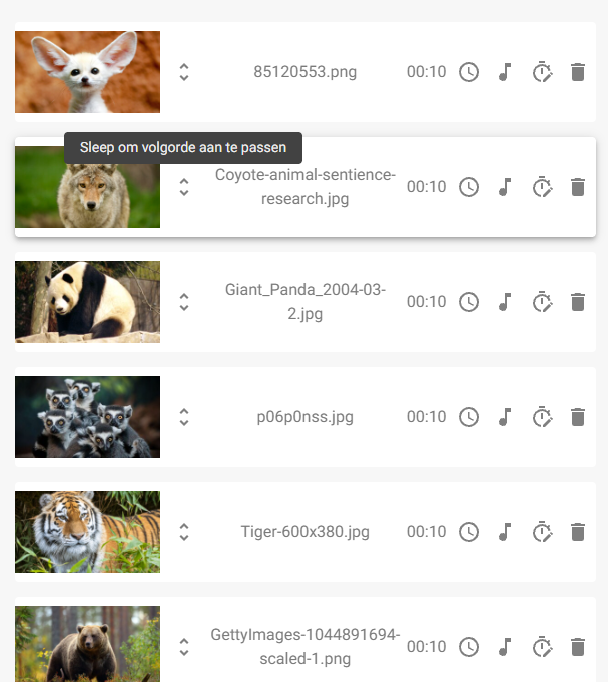
  • Drag the fragments into the desired order
  • The order determines how they are played within the bundle

Step 5: Schedule fragments (optional)

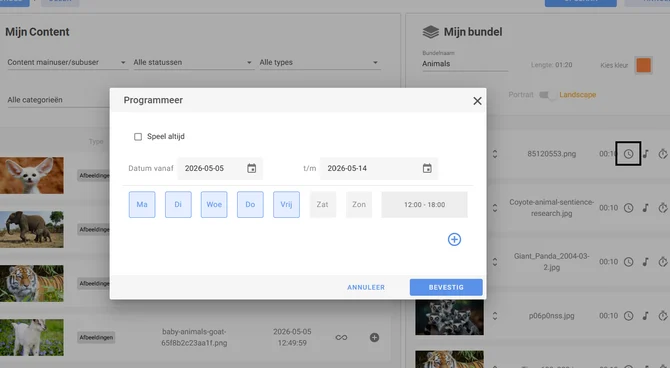
You can set when each fragment should be played.

  1. Click the clock icon next to a fragment
  2. Set:
    1. Days
    2. Times
    3. Start and end date
  3. Click Confirm

Step 6: Save

Click Save to apply all changes.

Step 7: Share

Optionally, you can add this bundle directly to a playlist from this page and/or share it with a subuser.

Step 8: Save

Click Save to add or update the bundle.

Adding a bundle to a playlist

To actually display a bundle on the screens, you need to add it to a playlist.

Here’s how:

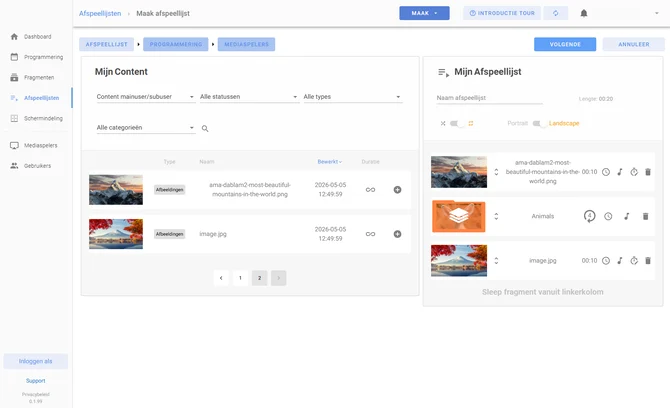
  1. In the left-hand menu, go to Playlists
  2. Click New playlist or edit an existing playlist
  3. Click the plus icon next to the bundle or drag the bundle into the playlist
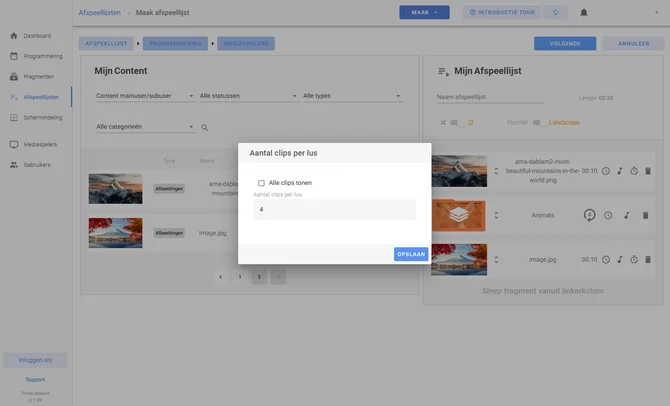
  4. Specify how many fragments you want to display per loop
  5. Click Save

Setting the number of fragments per loop

When adding a bundle to a playlist, you can choose how many fragments are played per loop.

You have two options:

  • Show all → all fragments from the bundle are played in every loop
  • Specific number (e.g. 4) → fragments are distributed across multiple loops

How does playback per loop work?

As a main user, you indirectly determine how fragments are played by filling the bundle and setting how many fragments per loop should be displayed in the playlist.

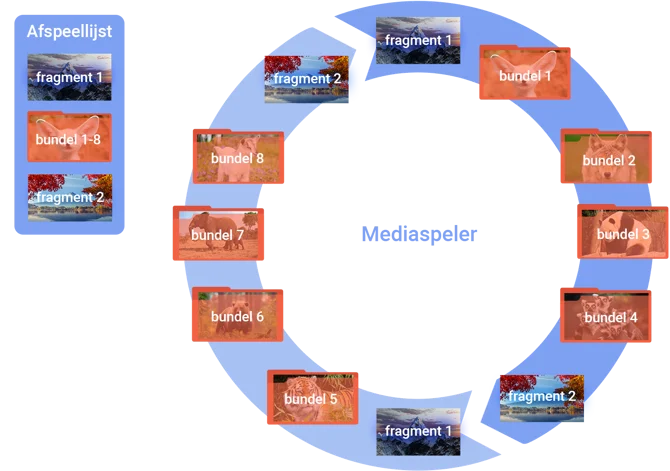
Example

  • Bundle contains 8 fragments
  • Setting: 4 fragments per loop
  • Loop 1: fragments 1, 2, 3 and 4
  • Loop 2: fragments 5, 6, 7 and 8

Result:

The cycle then starts again with fragment 1.

Manage subuser bundles

As a main user, you can also work with subuser bundles.

What can you do as a main user?

  • Create a bundle for subusers
  • Set the maximum number of fragments
  • Choose the name and colour
  • Review fragments after they have been added
  • Schedule fragments in the playlist
  • Link the bundle to specific subusers
Scroll to Top